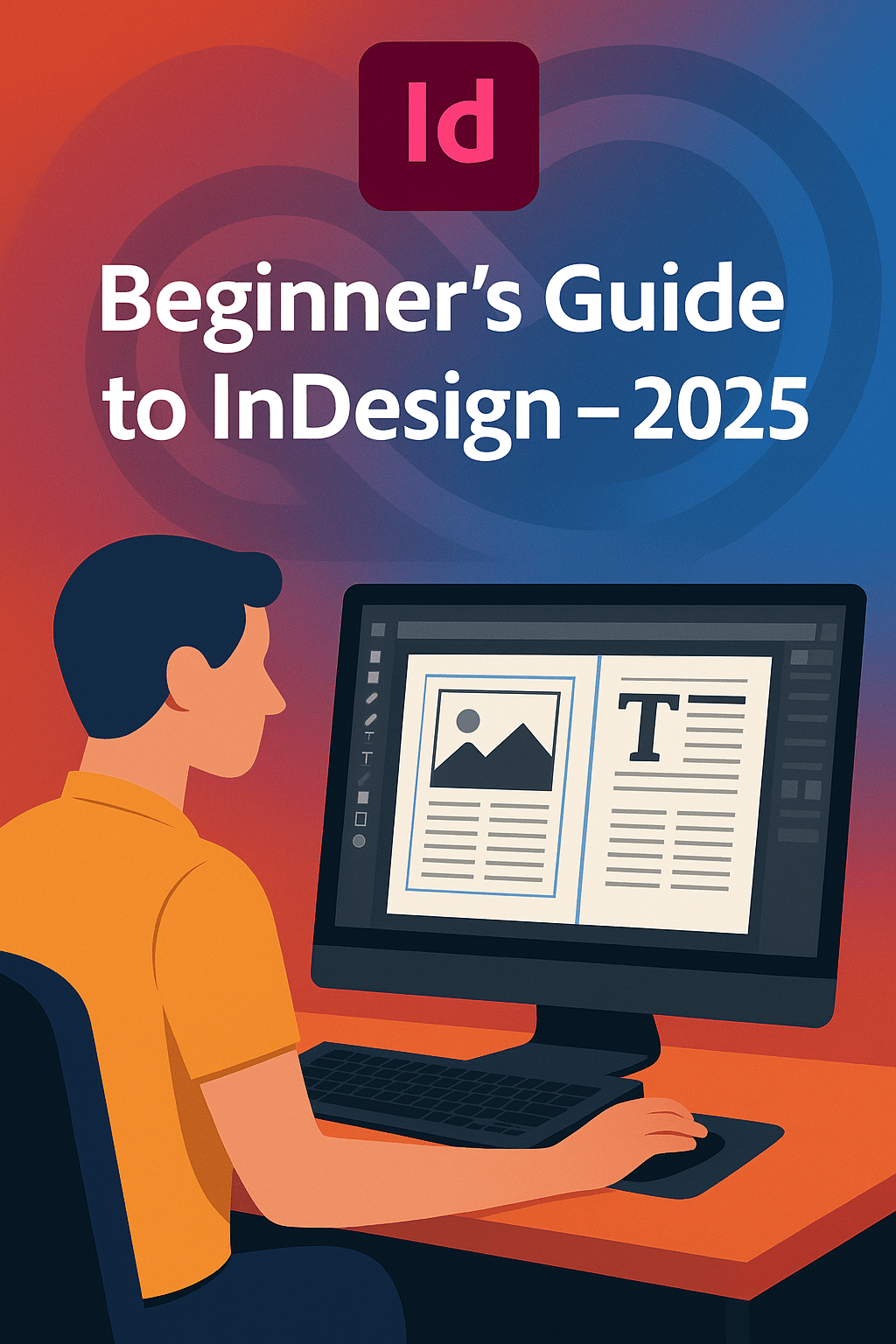
When it comes to layout design, no tool is more widely used than Adobe InDesign. From magazines and brochures to eBooks and digital PDFs, InDesign gives designers precise control over text, images, and layouts. In this 2025 beginner’s guide, we’ll explore how to get started with InDesign and build your first professional layout.
1. Setting Up Your Document
- Open InDesign and create a new document.
- Choose preset sizes like A4, Letter, or custom dimensions.
- Set margins, columns, and bleed for print projects.
💡 Pro tip: Always define bleeds (3mm/0.125in) if printing.
2. Understanding the Workspace
- Pages Panel: Manage multiple pages in your project.
- Tools Panel: Includes text, shape, and selection tools.
- Properties Panel: Adjust formatting, alignment, and colors.
3. Adding Text
- Use the Type Tool (T) to draw text frames.
- Import text from Word or copy-paste directly.
- Adjust typography using fonts from Adobe Fonts.
💡 Use Paragraph Styles for consistent formatting.
4. Working with Images
- Place images with File > Place (Ctrl/Cmd + D).
- Use the Frame Tool (F) to create placeholders.
- Control image fitting with Object > Fitting options.
5. Designing with Grids & Guides
- Set up a baseline grid for text alignment.
- Use guides to keep images and text consistent.
- Apply Master Pages to repeat headers, footers, or logos.
6. Exporting Your Layout
- Export as PDF (Print) for professional printing.
- Export as PDF (Interactive) for digital presentations.
- Use Publish Online to share directly with clients.
Conclusion
InDesign may seem complex at first, but once you master text frames, grids, and master pages, it becomes an indispensable tool for layout design. By 2025, it remains the go-to choice for professional publishing.
👉 Ready to design like a pro? Get Adobe InDesign free for 7 days and start your first layout project today.




 Marys Graphics